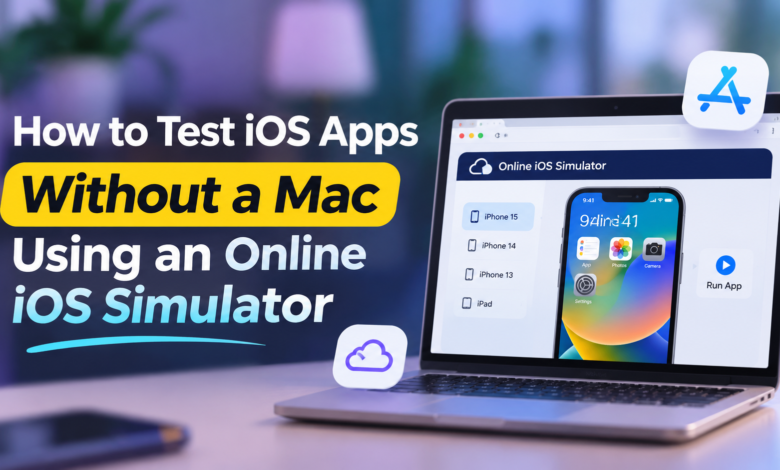
How to Test iOS Apps Without a Mac Using an Online iOS Simulator
Learn how to test iPhone and iPad applications on Windows or Linux using browser-based iOS simulators and cloud testing tools.

Introduction
Testing an iOS app traditionally required a Mac, Xcode, and access to Apple’s development tools. For developers using Windows or Linux, this often meant spending extra money on hardware.
That is no longer the only option.
An online iOS simulator allows developers to run compatible iOS applications through a web browser. You can check layouts, test navigation, identify errors, and review app functionality without installing Xcode on your own computer.
However, running an application and building one are different tasks. An online simulator provides the testing environment, while creating an iOS build may still require a cloud-based macOS build service.
This article explains how to test iOS apps without a Mac, which platforms are available, and what developers should know before getting started.
Quick Facts About Online iOS Simulators
| Feature | Details |
|---|---|
| Main Purpose | Testing iPhone and iPad applications |
| Mac Required | No, for supported cloud testing workflows |
| Supported Computers | Windows, Linux, and macOS |
| Access Method | Web browser |
| Common Testing Types | UI, navigation, functionality, and compatibility |
| App Formats | Simulator-compatible .app or device-compatible .ipa, depending on the service |
| Popular Platforms | Appetize, BrowserStack, Sauce Labs |
| Internet Required | Yes |
| Best For | Developers, testers, and software teams |
What Is an Online iOS Simulator?
An online iOS simulator is a cloud-hosted environment that lets developers run compatible iPhone or iPad applications remotely.
Instead of installing Apple’s Simulator locally, you access a virtual iOS device through a browser.
The application runs on remote infrastructure, and its interface appears on your screen. You can interact with buttons, menus, forms, and other app elements using your mouse and keyboard.
Online simulators are useful for checking:
- Application layouts and screen design
- Buttons and navigation
- Login and registration pages
- Form validation
- Different screen sizes
- Basic network interactions
- Application errors and crashes
- User interface behaviour
Some cloud testing platforms also provide access to real iPhones. These are different from simulators because they use physical Apple devices hosted remotely.
Can You Test iOS Apps Without a Mac?
Yes. Developers can test compatible iOS application builds without owning a Mac by using cloud-hosted simulators or real-device testing services.
However, the available features depend on the platform.
| Testing Activity | Possible Without Owning a Mac? |
|---|---|
| Run an existing iOS simulator build online | Yes |
| Test an IPA on a cloud-hosted iPhone | Yes |
| Check app layouts and navigation | Yes |
| Test different supported screen sizes | Yes |
| Create an iOS build using a cloud service | Yes |
| Run Xcode locally on Windows | No |
| Fully test physical hardware using only a simulator | No |
Apple’s Xcode development environment is designed for macOS. Cloud testing platforms provide access to remote environments, allowing developers to complete many testing tasks from other operating systems.
Best Online iOS Simulators for App Testing
Several cloud platforms support browser-based iOS testing. Each offers different features, supported file formats, and testing environments.
1. Appetize.io
Appetize is a browser-based platform that allows developers to run compatible mobile applications using cloud-hosted virtual devices.
It is particularly useful for app demonstrations, interface testing, and sharing application previews with team members.
Developers can upload a simulator-compatible application bundle and interact with the app through a browser.
Main features include:
- Browser-based app previews
- Virtual iOS devices
- Interactive UI testing
- App demonstrations
- Testing automation capabilities
Appetize requires a simulator-compatible application bundle, typically provided as a compressed .app file. A standard IPA intended for a physical iPhone is not directly interchangeable with this format.
2. BrowserStack App Live
BrowserStack App Live provides access to cloud-hosted physical iPhones and iPads.
Unlike a virtual simulator, this service allows developers to inspect application behaviour on actual Apple hardware.
It is useful for testing native applications, checking device compatibility, and investigating bugs that are difficult to reproduce in a simulated environment.
Main features include:
- Real iPhone and iPad testing
- Browser-based access
- Support for compatible IPA files
- Interactive application testing
- Device and iOS version selection
- Debugging and reporting tools
BrowserStack is particularly useful when developers want more realistic hardware testing without purchasing multiple Apple devices.
3. Sauce Labs
Sauce Labs is another cloud testing platform that supports mobile application testing.
It offers virtual iOS simulators and real-device testing environments, depending on the selected service and plan.
The platform also supports automated testing for teams that need to check application functionality regularly.
Main features include:
- Cloud-hosted iOS simulators
- Real-device testing
- Automated test execution
- Application debugging
- Multiple device configurations
- Team-based testing workflows
Developers should review each provider’s supported iOS versions, available devices, and current plan restrictions before choosing a service.
How to Test iOS Apps Without a Mac: Step-by-Step
Testing an iOS application online becomes straightforward once you have a compatible build.
Follow these steps to get started.
Step 1: Choose an Online iOS Testing Platform
Start by selecting a platform that meets your testing requirements.
For basic interface checks and application previews, a virtual iOS simulator may be sufficient.
If your application depends on physical hardware, consider a platform offering real iPhones.
Before creating an account, check whether the provider supports your app format, required iOS version, and preferred testing features.
Step 2: Prepare Your iOS Application
You will generally need an application build before uploading it to a cloud testing service.
Two common formats are:
.app File: An application bundle that can be compiled for an iOS simulator.
.ipa File: A packaged iOS application commonly used for installation on compatible physical devices.
These formats serve different purposes.
For example, Appetize accepts compressed simulator application bundles, while BrowserStack App Live supports compatible IPA files for real-device testing.
If you only have your application’s source code, you may need to create the appropriate build using a cloud build service.
Step 3: Upload the Application
Open your selected testing platform and sign in.
Locate the option for uploading an application.
Choose the supported file from your computer and follow the platform’s upload instructions.
For a simulator platform, this may involve uploading a ZIP archive containing the compiled .app bundle.
For real-device testing, the service may require a properly signed IPA file.
Once the upload is complete, the platform prepares the application for testing.
Step 4: Select an iPhone or iPad
Choose the device configuration you want to test.
Different screen sizes can reveal layout problems that are not visible on your primary development device.
For example, text may fit correctly on a large iPhone but appear cramped on a smaller display.
Where available, test more than one iOS version.
Step 5: Launch and Test the Application
Start the testing session and open your application.
Interact with it as a normal user would.
Check whether menus open correctly, buttons respond, and different pages load without problems.
Pay attention to login screens, registration forms, navigation controls, and the main features of the app.
Try entering incorrect information into forms and check whether suitable error messages appear.
Also test situations where the application experiences network delays or failed requests.
Step 6: Record Bugs and Retest
Document any problems you discover.
A useful bug report should include:
- Device model
- iOS version
- Application build number
- Steps to reproduce the issue
- Expected behaviour
- Actual behaviour
- Screenshots or recordings, when available
After fixing a problem, create an updated application build and repeat the relevant tests.
This helps verify that the issue has been resolved.
How to Build an iOS App Without a Mac
Testing services generally expect an existing application build.
For Windows and Linux developers, generating that build can be one of the main challenges.
Fortunately, some cloud build services can compile iOS applications on remote macOS infrastructure.
Using Expo for React Native Applications
Expo provides cloud-based build services for compatible React Native projects.
Developers can request an iOS simulator build without running Xcode locally.
First, configure a simulator build profile inside the eas.json file.
{
  "build": {
    "preview": {
      "ios": {
        "simulator": true
      }
    }
  }
}
Then run the following command:
eas build -p ios --profile previewThis requests an iOS simulator build through Expo Application Services.
Once the build is completed, download the generated artifact.
You can then prepare the simulator-compatible application bundle for a supported online testing platform.
Other cloud development services, including Codemagic, can also support remote iOS build and testing workflows.
The exact process depends on your development framework and the type of application you are building.
Online iOS Simulator vs Real iPhone Testing
Both options have advantages, but they are not identical.
An online simulator reproduces an iOS software environment, while a cloud real-device service provides access to actual Apple hardware.
| Feature | Online iOS Simulator | Real iPhone Testing |
|---|---|---|
| Basic UI Testing | Yes | Yes |
| Navigation Testing | Yes | Yes |
| Form Testing | Yes | Yes |
| Screen Layout Checks | Yes | Yes |
| Physical Hardware Testing | Limited | Yes, subject to provider support |
| Real Device Performance | No | More representative |
| Camera and Sensors | Limited or simulated | Depends on provider |
| Final Release Testing | Supplementary | Recommended |
Simulators work well for identifying basic interface and navigation problems.
However, physical devices remain important for checking camera functions, Bluetooth connections, biometric authentication, performance, and other device-dependent features.
Important Features to Test in an iOS App
A reliable testing process should cover more than whether the application opens successfully.
User Interface Testing
Check whether the application looks correct on different screen sizes.
Review text alignment, button placement, spacing, and navigation menus.
Make sure content remains readable and interactive elements are easy to use.
Functional Testing
Test the main features of the application.
For example, an online shopping app should allow users to browse products, add items to a cart, and move through the checkout process.
A social application may require testing account registration, messaging, and profile settings.
Compatibility Testing
Test supported iOS versions and device configurations.
This helps identify problems caused by operating system differences or layout changes.
Network Testing
Check how the application behaves when requests fail or the internet connection becomes unstable.
Users should receive understandable messages instead of frozen screens or unexplained errors.
Security Testing
Review authentication, access controls, and the handling of sensitive data.
Use test accounts and sample information rather than real customer details in shared testing environments.
An online simulator can support some security-related checks, but it does not replace a full application security assessment.
Benefits of Using an Online iOS Simulator
No Need to Purchase a Mac
One of the biggest advantages is lower hardware dependency.
Developers can complete many testing tasks from Windows or Linux computers without buying a Mac specifically for local simulator access.
Access to Different Device Configurations
Cloud services may provide multiple iPhone and iPad configurations.
This makes it easier to identify issues related to screen dimensions or supported operating system versions.
Easier Collaboration
Developers, designers, and testers can review applications remotely.
Team members do not necessarily need to share the same physical device to inspect an app.
Faster Feedback During Development
Testing early helps identify interface problems before they become part of a larger release.
Developers can check changes, reproduce errors, and verify fixes throughout the development process.
Automated Testing Support
Some testing platforms support automated frameworks such as Appium and XCUITest.
These tools allow teams to repeat selected test scenarios across supported environments.
Automated testing is particularly useful for applications that receive frequent updates.
Limitations of Online iOS Simulators
Online simulators are useful, but they have limitations.
Internet Connection Is Required
Cloud testing depends on an active internet connection.
A slow or unstable connection can make remote interaction less responsive.
Hardware Features May Be Limited
Simulated environments cannot fully reproduce every feature of a physical iPhone.
Applications that depend heavily on sensors, cameras, NFC, Bluetooth, or other device-specific components may need additional testing.
File Compatibility Can Cause Problems
Different platforms accept different build formats.
An application compiled for the iOS simulator may not work on a physical-device testing platform.
Always review the provider’s upload requirements.
Free Plans May Have Restrictions
Some services provide free trials or limited testing allowances.
Session duration, available devices, and automation features may depend on the subscription.
Third-Party Data Handling Matters
Uploading an application to an external provider introduces security and confidentiality considerations.
Before testing proprietary software, review the provider’s access controls, data retention terms, and privacy practices.
Common Problems When Testing iOS Apps Online
Application Upload Fails
Check whether the uploaded file matches the platform’s supported format.
An IPA cannot simply be renamed to .app to make it simulator-compatible.
Generate the correct application build.
App Crashes After Launch
Confirm that your application supports the selected iOS version.
Review available logs and investigate whether the crash is related to compatibility, missing dependencies, or application code.
Screen Layout Appears Incorrect
Check safe-area handling, layout constraints, font scaling, and screen orientation.
Repeat the test using another device size to identify whether the problem affects all devices.
Application Cannot Connect to the Server
A cloud simulator may not be able to access a backend running on your computer’s localhost address.
Use a properly configured staging server or a secure connection method supported by your testing platform.
The Simulator Feels Slow
Remote testing performance can be affected by network latency and the cloud environment.
Do not assume that a slow testing session means the application will perform poorly on a physical iPhone.
Use real-device testing for more representative performance measurements.
Best Practices for Testing iOS Applications Without a Mac
Start testing during development instead of waiting until the application is finished.
Focus on important user activities, including login, registration, navigation, and completing the app’s main task.
Test several supported screen sizes.
Keep records of your application build numbers and testing environments so that reported problems can be reproduced.
Use dedicated test accounts and avoid entering confidential information into cloud testing environments unless the provider meets your security requirements.
Combine manual testing with automation where it makes sense.
Finally, verify important application features on real iPhones before publishing.
Online simulators make testing more accessible, but they should be part of a broader quality assurance process.
Final Thought
Testing iOS applications without a Mac is a practical option for developers who work on Windows or Linux.
An online iOS simulator allows you to inspect application interfaces, check navigation, identify errors, and review functionality directly through a browser.
Platforms such as Appetize, BrowserStack, and Sauce Labs provide different testing environments, from virtual simulators to cloud-hosted physical iPhones.
The right approach depends on your application build, testing needs, and budget.
You may not need to own a Mac to begin testing an iOS app. A compatible build, the right cloud platform, and a consistent testing process can take you a long way.
Frequently Asked Questions
1. Can I test an iOS app on Windows without a Mac?
Yes. Developers can use browser-based cloud testing platforms to run compatible iOS applications without owning a Mac or installing Xcode locally.
2. Is there a free online iOS simulator?
Some providers offer free trials or limited usage options. Testing availability and restrictions vary, so check the platform’s current pricing and plan details.
3. Can I install Xcode on Windows?
Apple’s supported Xcode environment requires macOS. Windows developers can use cloud build services and remote iOS testing platforms instead.
4. Can an online iOS simulator run IPA files?
Not every simulator supports IPA files. Some services require simulator-compatible .app bundles, while cloud real-device services can accept compatible IPA files.
5. What is the difference between an iOS simulator and an emulator?
A simulator reproduces a software environment for testing, while an emulator generally reproduces another system’s hardware or architecture. The terms are sometimes used interchangeably, although they describe different technical approaches.
6. Can I test an iOS app without an Apple Developer account?
Yes, for some simulator-based workflows. Physical-device builds, code signing, and app distribution may require additional Apple account configuration.
7. Which online iOS simulator is best for beginners?
Appetize is a useful starting point for developers who already have a simulator-compatible application build. BrowserStack App Live is another option when testing on real iPhones is required.
8. Are online iOS simulators safe to use?
They can be suitable for testing when you select a reputable provider and follow appropriate security practices. Review privacy policies, access controls, and data retention settings before uploading sensitive applications.